Have you ever wondered if your iPad could bring you the rush of true console gaming? Xbox Cloud Gaming makes it possible to play awesome games directly from the cloud.
Picture yourself enjoying crisp, smooth gameplay and diving into action-packed adventures wherever you are. All you need is a simple subscription and a steady internet connection to unlock a whole new world of epic play.
This guide will help you get started, so you can experience the thrill of high-end gaming right on your iPad.
Play Xbox Cloud Gaming on iPad: Quick Start Guide

Imagine diving into your favorite games on your iPad without any heavy downloads. With Xbox Cloud Gaming, you can stream Game Pass titles right to your device with just a few simple steps. First off, you'll need an Xbox Game Pass Ultimate subscription, which is $16.99 per month. This one subscription not only lets you stream games from the cloud but also opens up online multiplayer, member discounts, and early access to new games.
Next, make sure your internet is good to go, at least a 10 Mbps download for smooth streaming, though a 20 Mbps connection is even better if you're into fast-paced action. The service works with iPad models like the iPad Air (3rd Gen), iPad mini (5th Gen), and iPad Pro (2017 and later), all running a compatible version of iOS.
To jump in, open your favorite browser, Safari, Chrome, or Edge, and head to the Xbox Cloud Gaming website. There, you'll instantly access your game library. The stream offers visuals in up to 1080p at 60fps, so you get clear graphics and the same fluid motion as on a console.
And if your game only needs a controller, just pair your Bluetooth gamepad through your iPad’s settings. It's super simple, just log in and play, and you're all set for an awesome gaming session. Enjoy the thrill of the game without the hassle of bulky downloads or extra setups!
System Requirements for Xbox Cloud Gaming on iPad
To get started, you need an Xbox Game Pass Ultimate subscription. It works on iPads like the iPad Air (third generation or later), iPad mini (fifth generation), iPad Pro from 2017 onward, or the iPad 8th generation running iOS 14 or higher. If your iPad meets these points, you can start playing without any heavy downloads.
A strong and steady internet connection is key. You should have at least 10 Mbps, but 20 Mbps or more is best for those action-packed games. Instead of using the Game Pass iOS app, open up your browser (Safari, Chrome, or Edge) and enter the cloud gaming URL to jump straight into the game.
If a game requires a controller for input, hook up a compatible Bluetooth controller since touch controls might not work as expected.
| iPad Model | iOS Version | Recommended Internet Speed |
|---|---|---|
| iPad Air 3rd Gen | iOS 14+ | 20 Mbps+ |
| iPad mini 5th Gen | iOS 14+ | 20 Mbps+ |
| iPad Pro 2017+ | iOS 14+ | 20 Mbps+ |
| iPad 8th Gen | iOS 14+ | 20 Mbps+ |
xbox cloud gaming for ipad: Enjoy Epic Play
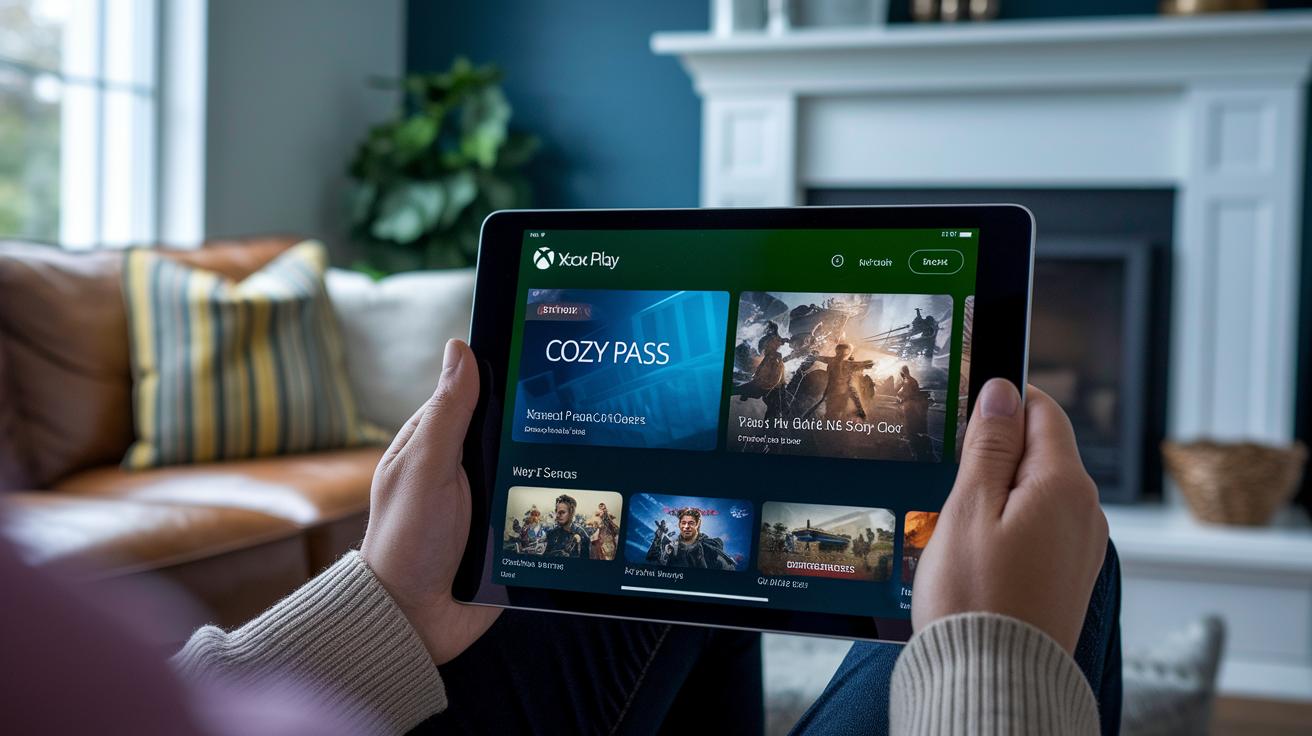
First, open your favorite browser like Safari or Chrome on your iPad and head straight over to xbox.com/play. Once the page loads, sign in using your Microsoft account that's linked to Game Pass Ultimate because that subscription unlocks a giant library of games.
After you sign in, you'll see a prompt to add the page to your Home Screen. Give it a tap and watch as your iPad transforms the webpage into your very own gaming hub, a little shortcut that feels just like a native app.
Next, tap the new web app icon on your Home Screen to launch it. As you scroll through the Game Pass library, you'll easily spot your favorite titles ready for streaming, almost like flipping through a live digital catalog full of excitement.
To ramp up the experience, pair a Bluetooth gamepad by going to Settings, tapping Bluetooth, and selecting your device. This step gives you that fun, console-like feel right at your fingertips. Also, take a moment to check out the stream quality slider in the app. Adjusting it lets you balance clear visuals with smooth gameplay, much like fine-tuning the volume at your favorite live concert.
Follow these simple steps to get gaming in no time:
- Open your favorite browser and visit xbox.com/play.
- Sign in with your Microsoft account linked to Game Pass Ultimate.
- Tap "Add to Home Screen" to create a handy web app shortcut.
- Launch the new web app from your Home Screen.
- Browse through the Game Pass library to pick your game.
- Pair your Bluetooth gamepad via Settings > Bluetooth.
- Adjust the stream quality slider to match your connection.
- Select and launch your game and start playing!
Optimizing Network & Controller Setup for Xbox Cloud Gaming on iPad

Getting the best out of your iPad starts with a smooth network connection. Switch to a 5 GHz Wi-Fi band, it’s like dimming the background buzz at a concert so your game shines through. Try tweaking your router’s settings by turning on QoS (that’s a feature which helps prioritize your game traffic) or selecting a gaming mode. This little tweak can be huge when you're in the middle of fast-paced action.
It also helps to close any background apps. Think of it like cleaning off your desk before diving into a big project. And if you ever feel a lag spike, use the in-browser quality slider to lower the resolution. It’s a bit like balancing the bass and treble to get that perfect sound mix.
Network Optimization
Make sure your router is set to the 5 GHz band for a steadier connection. Enable QoS or switch to gaming mode so your streaming data gets first dibs. And remember, shutting down extra apps in the background can clear up precious bandwidth. Even a small adjustment on the quality slider can ease off the lag when needed.
Controller Pairing & Calibration
For top-notch control, pair your Xbox Wireless Controller or Razer Kishi Ultra using Bluetooth. Head over to your iPad’s Bluetooth settings, pick your controller, and follow the on-screen steps. And one last tip: keep your iPad cool. Staying under 95°F can help keep everything running at its best.
Troubleshooting Common Streaming Issues on iPad

When you see a "Service unavailable" error or have trouble signing in while gaming on your iPad, first check your internet connection. Try a speed test on a trusted website to see if you’re hitting at least 10 Mbps. If the speed feels slow or jumps around, restart your router and close any apps or downloads that might be using up your bandwidth. Often, a simple restart clears up a brief network hiccup.
If you’re having trouble logging into your Xbox Cloud Gaming account, clearing your browser’s cache and cookies could do the trick. And if Safari is still acting up, switch to another browser like Chrome or Edge. Also, make sure your controller firmware is up-to-date in your Bluetooth settings because old firmware might mess with the streaming. Lastly, check your Xbox Live status to see if there are any larger service outages affecting your game time.
Xbox Game Pass Ultimate: Subscription & Benefits on iPad

Xbox Game Pass Ultimate comes in at just $16.99 a month. For that price, you get cloud gaming, a library of EA Play titles, online multiplayer, special member discounts, and a sneak peek at new games, just like our Quick Start Guide mentioned.
Managing your plan is a breeze, simply sign in to your Microsoft account and tweak your auto-renew settings as needed.
Fun fact: with just $16.99 a month, your iPad becomes a portable gaming powerhouse with no extra fees for mobile play.
Final Words
In the action, we explored every step needed to play xbox cloud gaming for ipad. We covered the system requirements, setting up the web app, controller pairing, and network tweaks to keep your stream smooth. We even looked at ways to fix common issues that might pop up. Every tip was shared in a clear, easy-to-follow style so you can quickly jump in, enjoy the fun, and share the experience with fellow gaming fans. Enjoy the ride and keep pushing your digital play to new heights.
FAQ
What does Xbox Cloud Gaming download mean?
The Xbox Cloud Gaming download means you can stream games straight from your browser or web app without installing anything locally, letting you jump into the action quickly.
How do I access Xbox Cloud Gaming on my iPad?
Accessing Xbox Cloud Gaming on your iPad involves opening Safari, Chrome, or Edge to visit xbox.com/play, signing in with your Microsoft account, and adding the site to your home screen as a web app.
Is Xbox Cloud Gaming for iPad free?
Xbox Cloud Gaming on iPad isn’t free; you need an Xbox Game Pass Ultimate subscription, which costs $16.99 a month, to stream games on your device.
What devices support Xbox Cloud Gaming?
Xbox Cloud Gaming works on devices like the iPad Air (3rd Gen) or later, iPad mini (5th Gen), and iPad Pro (2017+), as well as other compatible smartphones and PCs that meet the system requirements.
Can you play console games on an iPad using Xbox Cloud Gaming?
Yes, console games stream directly to your iPad using Xbox Cloud Gaming, so you get the feel of console play without needing a physical console, as long as you meet the specs and have a good internet connection.
How can I play Fortnite on an iPad with Xbox Cloud Gaming?
Playing Fortnite on your iPad through Xbox Cloud Gaming involves launching the web app, finding Fortnite within the Game Pass library if available, and pairing a Bluetooth controller for a console-like gaming experience.
Can I use my iPad as an Xbox controller?
Your iPad’s role is as a streaming display; you’ll need a separate Bluetooth controller to handle the gaming controls, as the iPad itself isn’t designed to function as an Xbox controller.
What is the best way to install Xbox Cloud Gaming on iPad?
The best way to install Xbox Cloud Gaming on your iPad is by using your browser, signing in to xbox.com/play, and adding the game site to your home screen, making it accessible like an app.