Ever thought about streaming Xbox games as easily as scrolling through your favorite playlist? With an Xbox Game Pass Ultimate subscription, cloud gaming becomes simple and fun.
Imagine firing up an app that instantly unlocks a huge game collection without wasting time on long downloads. In this post, we’ll walk you through starting your gaming journey right away, making the most of your subscription and device.
Get ready to dive into gameplay that feels as effortless as a live digital performance.
Getting Started with Cloud Gaming on Xbox
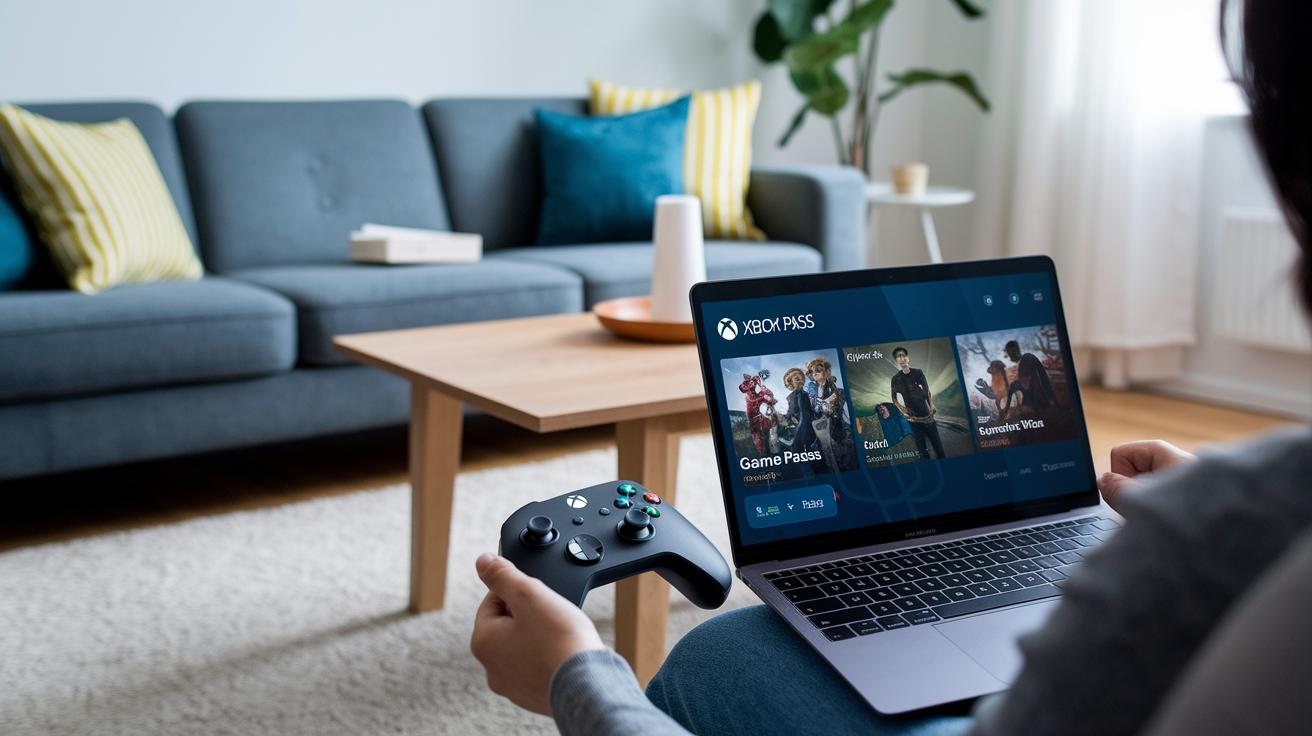
Getting started is super easy. To jump into cloud gaming on Xbox, you just need an Xbox Game Pass Ultimate subscription, a device that can handle the Game Pass app or browser experience on xbox.com, and an active Microsoft account. This magical subscription opens up a massive game library that streams straight from Microsoft’s servers, letting you dive into gameplay without needing a full console. Imagine checking your subscription and thinking, "I’m all set to stream my favorite titles!"
Before you start, double-check that your device is ready. Whether you’re on Android, iOS, or Windows, make sure your operating system is up-to-date so you can enjoy the smooth cloud gaming vibe. Picture this: you open your laptop’s browser and the interface just flows perfectly, like the opening act of an epic digital concert.
Here’s your step-by-step plan:
- Grab or confirm your Xbox Game Pass Ultimate subscription.
- Sign in on xbox.com or open up the Game Pass app on your device.
- Install or update the app to stay in the loop.
- Connect your Microsoft account and check your region.
- Browse through the amazing cloud-enabled game library.
- Pick and launch your very first cloud game.
The moment you hit play, you'll feel the near-instant magic of streaming. The live gameplay kicks off in a flash, and every tap on your controller zips back to Microsoft’s servers as if by magic, almost like the burst of energy before a live show begins. Each move is tracked in real time, creating an experience that’s interactive, smooth, and downright engaging. So go ahead, immerse yourself in the vibrant worlds designed for digital streaming and enjoy every thrilling moment.
Network Requirements and Setup for Xbox Cloud Gaming
A fast and steady internet is a must if you want to enjoy Xbox Cloud Gaming. You’ll need at least 10 Mbps download speed to get started, but using a 5 GHz Wi-Fi band or a wired Ethernet connection will make your gaming experience even smoother. It’s like choosing the fast lane over a bumpy back road. Since Xbox Cloud Gaming runs on Microsoft’s global servers, a reliable connection really cuts down on lag.
Here are some quick tips:
| Step | Action |
|---|---|
| 1 | Switch to a 5 GHz Wi-Fi band if you can |
| 2 | Turn off VPNs that might slow you down |
| 3 | Set up Quality of Service (QoS) on your router |
| 4 | Keep your router away from walls and other objects |
| 5 | Close any background downloads and apps to clear up bandwidth |
Before you dive into your game, run a quick speed test to check if you’re hitting those numbers. Moving your router to a central spot and updating its firmware can also work wonders. These little tweaks can make a big difference, keeping your connection strong and your gameplay interruption-free. Enjoy streaming like a pro!
Controller and Peripheral Setup for Xbox Cloud Gaming

Connecting your controller is a breeze. With Xbox Cloud Gaming, you can easily pair your Xbox Wireless Controller using Bluetooth on devices like Android, iOS, PC, and Mac. Simply press and hold the Pair button until the Xbox logo starts flashing, then select it from your device’s Bluetooth menu. You can also plug in a USB-wired controller or choose a supported third-party Bluetooth gamepad. Always keep your controller’s firmware up-to-date, kind of like updating your favorite app, to make sure everything runs smoothly. If your controller ever seems unresponsive, a quick firmware update might be all it needs to work like a charm.
If you come across games that are touch-only or need different control options, try using virtual gamepads or touch mapping available on many mobile devices. Some games may not play well with vertical layouts on smartphones, so switching the display can really improve the experience. Plus, third-party peripherals offer extra flexibility if you like a custom setup. Whether you’re using a virtual controller or a specialized gamepad, you can tailor your gaming session to match your play style with ease.
Playing Cloud Games on Xbox and Cross-Device Compatibility

Xbox Cloud Gaming lets you dive into your favorite games without needing a console. It works across a bunch of devices, smartphones, PCs, and smart TVs, so you can keep playing wherever you are. Imagine having a gaming setup that's as mobile as you are.
For Android, just open the Game Pass app, sign in, and tap the Cloud icon.
On iOS, head over to xbox.com/play in Chrome or Edge, sign in, and pick your game.
If you're using a Windows PC, open the Xbox app and choose the Cloud Gaming tab.
For macOS, navigate to xbox.com/play, sign in, and stream right in your browser.
And on your smart TV, just open a supported browser app and visit xbox.com/play.
Playing Xbox cloud games is all about keeping things smooth and simple. Games load from the cloud using Game Pass titles, so you won’t have to worry about downloads or losing space on your device. When you switch from one device to another, your game picks up right where you left off. It’s like flipping the channel to your favorite show without any hassle.
Switching devices is super easy too. Your game progress and settings stick with you, even when you hop on a different platform. This means you spend less time fiddling with settings and more time enjoying the game. Whether you're chilling at home or out and about, all your game action stays right in sync.
Troubleshooting Xbox Cloud Gaming Connections

If you run into sign-in troubles or notice buffering loops during your cloud gaming session, it might be a network or account hiccup. First, make sure your Game Pass Ultimate subscription is active and that you're signed in with the correct Microsoft account. It never hurts to run a quick speed test and check that your internet meets the minimum needs. I mean, if you see high latency or your sessions keep dropping, try restarting your router, switching over to a 5 GHz Wi-Fi network, or even using a wired Ethernet connection. And if your gameplay stalls every now and then, clearing the app cache or updating your device firmware could really smooth things out.
When issues stick around despite these fixes, it’s a good idea to explore official support channels for more hands-on help. Some error codes during streaming can match entries in Microsoft’s error-code database for step-by-step solutions. If your controller or device firmware is a bit outdated, updating them might just do the trick. Running another speed test can help you pinpoint any lingering network problems. By regularly checking the Xbox Live service status and watching for outages, you'll be ready to tackle technical hiccups. Troubleshooting these common issues turns a potentially frustrating moment into a seamless, interactive experience, kind of like fine-tuning a live performance until every note feels just right.
Enhancing Performance and Visual Quality in Xbox Cloud Gaming

When you're in the thick of a cloud game, your in-app video settings can really make a difference. Try playing with your resolution, switch between 720p and 1080p, so you get the crisply detailed moments when things are calm, and a smoother picture when the action really kicks in. Imagine setting it to 1080p when you're cruising along, then dropping to 720p during those wild, fast-paced scenes.
Audio is just as important as visuals. In the Game Pass settings, you can fine-tune the audio sync to keep every sound, from whispered dialogue to booming explosions, in perfect harmony with the gameplay. A small adjustment can wipe away any lag between what you see and what you hear, making the whole experience feel incredibly natural.
Now, if you want to cut down on input lag even more, try hooking your device up with an Ethernet cable or tweaking your router with QoS settings, a method that gives priority to gaming traffic. Plus, adaptive bitrate streaming lets your game’s visuals shift smoothly based on your connection speed, so you face fewer hiccups and interruptions. In short, setting up your hardware and network right makes every sparkle on screen and every beat of sound feel as immersive as your favorite live show.
Exploring Game Pass Library and Subscription Plans for Cloud Gaming
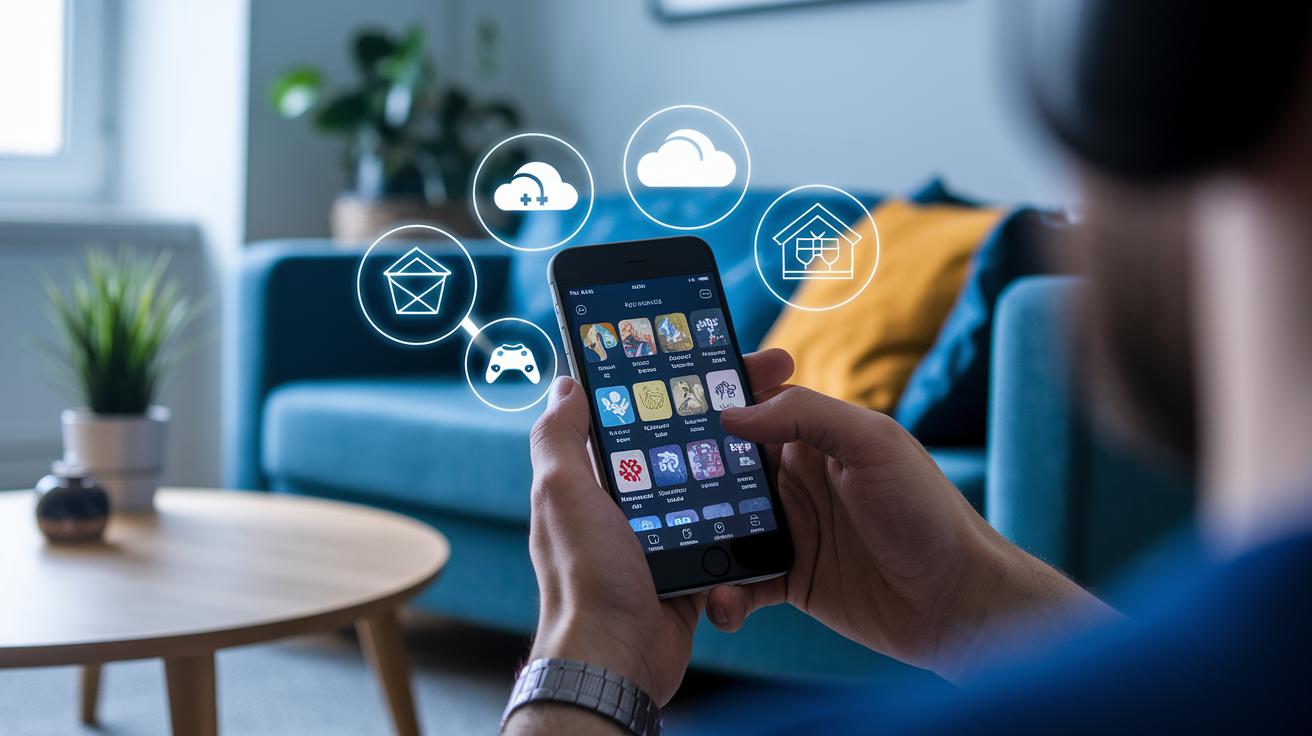
Imagine stepping into a digital wonderland where every game is at your fingertips. Xbox Game Pass Ultimate isn’t just about playing, it’s about immersing yourself in cloud gaming, enjoying PC Game Pass, EA Play, online multiplayer, and snagging member discounts. For just $16.99 in the US or £12.99 in the UK, you get access to a steadily growing collection of games, including the hottest new releases on launch day. It’s a smart way to dive into a world of digital downloads and online play without breaking the bank.
Next, picture browsing a digital marketplace built just for you. It’s like wandering into a well-organized store where every section is dedicated to a favorite game genre, from pulse-pounding action adventures to mind-bending strategy quests. The setup makes it super easy to find games that are ready to stream, perfectly matching whatever mood you're in. And if you're not quite ready to commit, there are regional trials and special promos to let you test the waters. Early fans can even get in on beta updates for upcoming cloud features, and there’s even a free ad-supported option being tried out right now. Ever jumped into Fortnite for free on xbox.com? It’s a great way to see if this cloud gaming experience is your perfect match.
Advanced Streaming Settings and Future Updates for Xbox Cloud Gaming
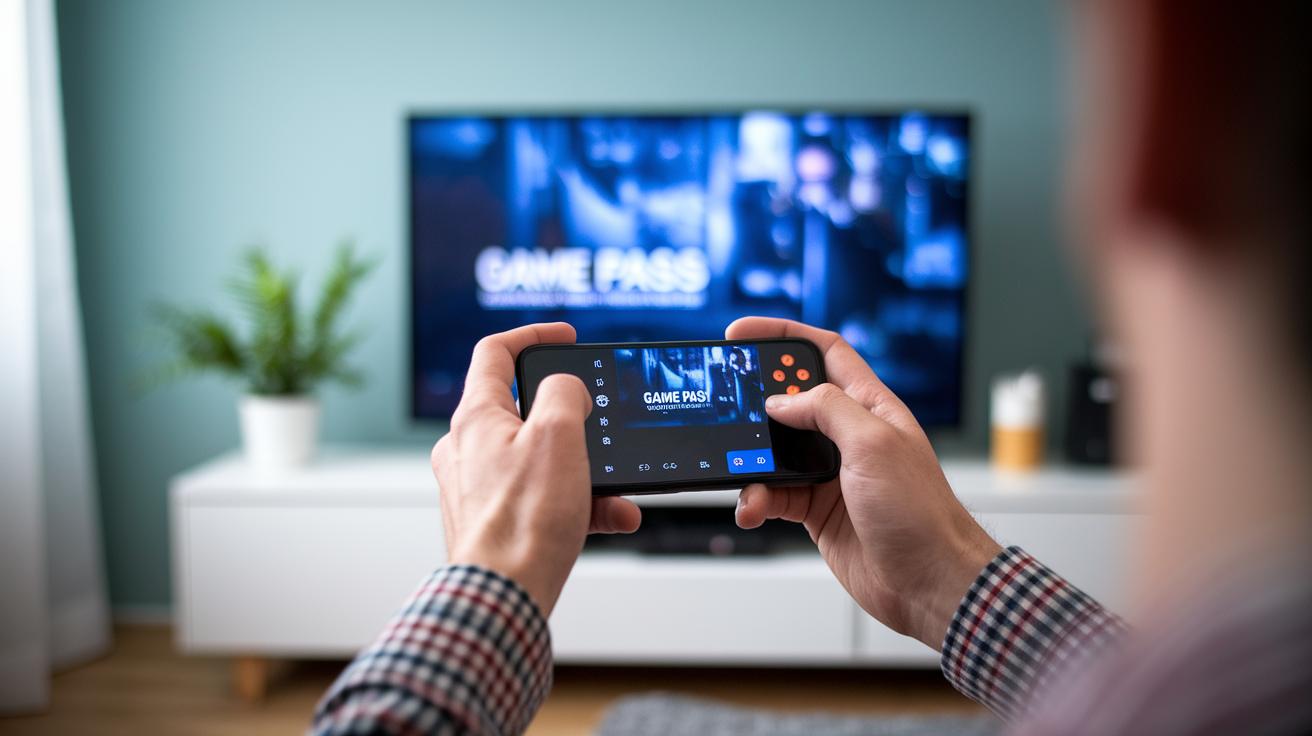
Xbox has rolled out new streaming settings that let you shape your cloud gaming just the way you like it. With smarter streaming codecs and a low-latency mode on the Xbox Series X and Series S, your games now feel smoother and look sharper even in the heat of battle. You can change settings right from the Game Pass menu, tweaking resolution and bitrate to match your connection speed. Imagine it as your personal streaming studio that dances to your every move with the controller.
And guess what? More cool updates are on the way. Soon, you might see higher framerates, brilliant HDR support, lightning-fast game-start times, and even more device options. Xbox keeps you in the know with regular blog updates and a clear roadmap for what’s coming. Get ready to dive into a gaming experience that feels both personal and electrifying.
Final Words
in the action, you learned how to play cloud gaming on xbox by following easy setup steps, optimizing your network, and pairing controllers with minimal fuss. The post broke everything down, from checking your Game Pass Ultimate, tuning your connection, and trying out cross-device streaming to handling simple fixes and tweaking video settings. Every section brings you closer to enjoying a seamless digital play experience. Enjoy sharing these cool tips and diving into a world where interactive gaming is more accessible than ever.
FAQ
How do I play cloud gaming on Xbox Series X/S, Xbox One, and via the Xbox app on mobile devices?
Playing cloud gaming means you log in with your Xbox Game Pass Ultimate, access the corresponding app or a supported browser, and choose a game from the cloud-enabled library on your device.
How do I get Xbox Cloud Gaming on iPhone and Android devices?
Getting Xbox Cloud Gaming on mobile involves opening a compatible browser on iPhone at xbox.com/play or installing the Game Pass app on your Android device after confirming your Game Pass Ultimate subscription.
Can I use Xbox Cloud Gaming on platforms without a physical console?
Xbox Cloud Gaming lets you stream games on devices like phones and PCs without a console; it typically requires an active Xbox Game Pass Ultimate subscription, with free trials or select free games occasionally available.
Why might my Xbox Cloud Gaming not work as expected?
Issues often stem from network disruptions, sign-in errors, or inactive subscriptions. Verifying your network connection, checking your account status, and updating the app usually resolve common problems.
What games are available through Xbox Cloud Gaming and Xbox Game Pass?
Titles such as Fortnite, Tom Clancy’s Rainbow Six Siege, and Fortnite Battle Royale are among the cloud-enabled games. Browsing the Xbox Game Pass library reveals more exciting options.
Can I play Xbox Cloud Gaming without subscribing to Xbox Game Pass Ultimate?
Typically, cloud gaming requires Xbox Game Pass Ultimate. Still, Microsoft is testing free ad-supported options that might let you play select games without a paid subscription.