Ever thought recording your favorite streaming shows could be as simple as a tap? With PlayOn Cloud, it's like having your very own video recorder that grabs episodes from top sites in clear, high definition. Imagine kicking off a show on your phone and then easily switching over to your tablet without missing a beat.
Plus, it even schedules recordings for you and lets you skip commercials, so watching your favorite programs is smooth and fun.
playon cloud Elevates Effortless Streaming Recording
Meet PlayOn Cloud, your new buddy for recording your favorite streaming shows. This cool app for both iOS and Android acts just like a digital video recorder, automatically grabbing episodes from over 20 streaming sites like Netflix, Hulu, and Pluto TV. It's a bit like having a magic remote that records your shows so you never miss that special moment.
What’s even better is how smoothly it works across gadgets. Start watching on your phone and pick up right where you left off on your tablet or laptop, all in clear 1080p HD that gives you that real TV vibe. You can easily line up recordings ahead of time, skip past those pesky commercials, and even enjoy offline videos when you’re on the go. Imagine switching from a quick watch on your commute to settling in at home without missing a beat.
And don’t forget the free cloud DVR feature. This handy addition gives you unlimited access to manage a whole collection of shows, all without needing a computer. It’s designed to keep your streaming world at your fingertips and make your entertainment experience as fun and effortless as possible.
PlayOn Cloud App Installation and Setup Guide
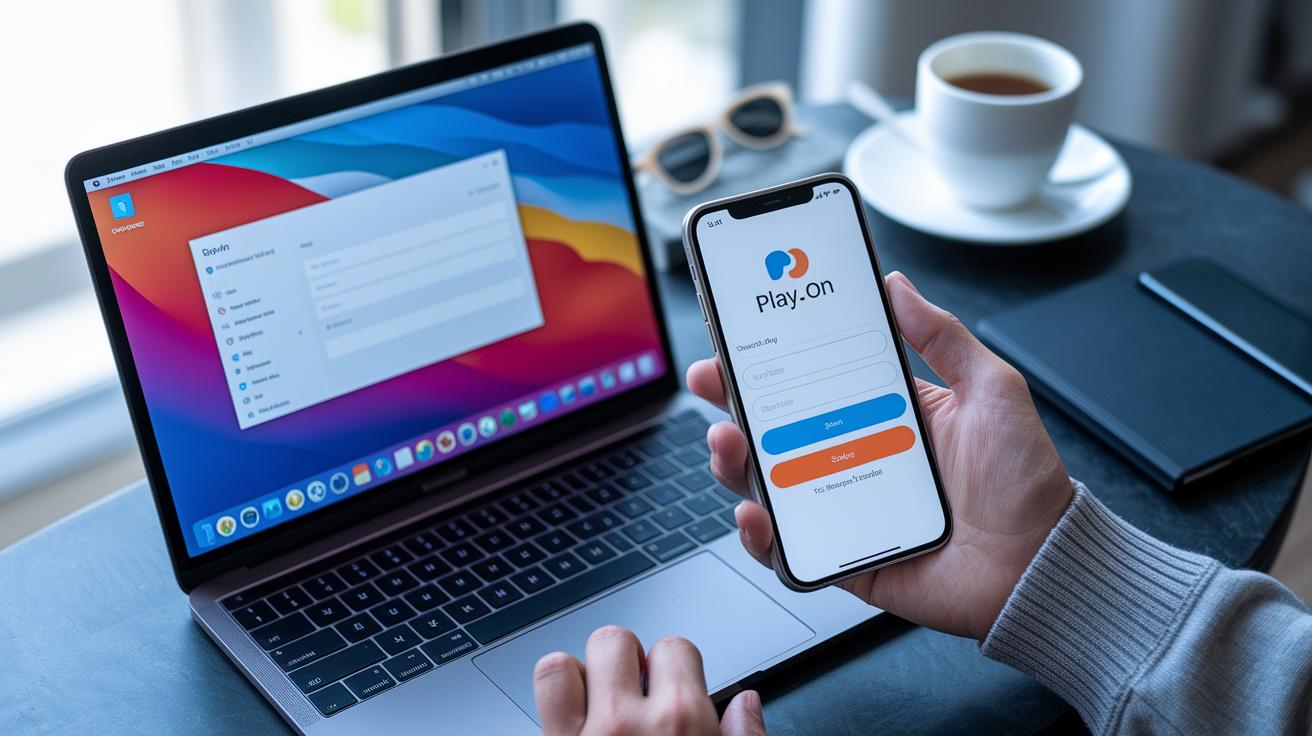
Get started with PlayOn Cloud right on your mobile by grabbing the app from either the App Store or Google Play. Once you’ve installed it, open the app and sign up using your email and a password, just like setting up your favorite social app. It’s quick and easy.
After you register, you’ll get free trial credits to play around with all the cool features. This trial lets you dive into streaming recordings and schedule your favorite shows without spending a dime. And if you love using your PC, you can download the desktop client and sign in with the same account, making it super smooth to record shows on both your laptop and mobile.
For Android TV or Roku users, the process is just as friendly. When you launch the app, you’ll see a box for a redemption code on your TV screen. Grab the code from your mobile app or account page and enter it, it’s like getting a secret invite!
Follow these steps for all devices:
- Download the app from your device’s store
- Register your account and claim your free trial credits
- Enter the activation code if you’re on Android TV or Roku
- Sync your recordings to keep everything organized
Once you’ve completed these steps, your media library will be in sync across all your devices, and you can start recording your favorite streaming content anytime, anywhere. Enjoy the simplicity of setting up your entertainment recording session without any extra fuss.
PlayOn Cloud Subscription Options and Pricing Breakdown
New users get to start with a free seven-day trial for audio recordings. This fun trial lets you explore the cool features before you decide to jump into a paid plan. If you like what you see and want more, plans start at just $4.99 a month. With this basic plan, you’ll get 30 recording credits and 100 GB of storage, which is enough to capture about 85 hours of 1080p video. Think of it like having your own digital locker for your favorite shows and events.
Then there’s the upgrade for those who need even more space and features. At the top end, you can opt for a plan costing up to $49.99 per month, which comes with a massive 4 TB of storage. This option is perfect for power users who record a lot and need plenty of room for all their content.
And if you ever decide you need to change your plan, it’s super easy, you can adjust or cancel your subscription directly in the app settings. Plus, for the die-hard fans who are ready for a long-term solution, there are lifetime options available. It’s like having a membership that gives you nonstop access without the hassle of monthly fees.
PlayOn Cloud Installation and Setup Guide for Multi-Device Integration
If you’re ready to set up PlayOn Cloud on all your devices, you’re in the right spot. This guide gives you a clear, simple walkthrough for iOS, Android, macOS, Roku, Android TV, Apple TV, and even using Chrome. It even has some neat extra pointers for TV screens and the Chrome extension.
Let’s jump into the steps for a smooth setup:
- First, download and install the PlayOn Cloud app on each device.
- Next, if you’re using a TV platform like Roku or Android TV, simply enter the activation code that pops up on your screen. It’s like watching the magic happen right before your eyes.
- For macOS and Apple TV users, follow the setup instructions in the app to sync your Channels library across all your devices.
- If you use Chrome, add the Chrome extension to open your recordings straight from your browser. Just click the extension icon and you’re all set.
- Make sure to connect your Channels library on every device so your recordings update automatically.
- Lastly, check your network settings on each device for smooth 1080p streaming, even during heavy usage.
| Device | Activation Tip |
|---|---|
| Roku / Android TV | Enter the on-screen code from the app |
| macOS / Apple TV | Follow in-app sync instructions |
| Chrome | Use the Chrome extension for instant access |
PlayOn Cloud Troubleshooting Guide for Login and Recording Issues
If you run into login issues, forgotten credentials, or if your subtitles don’t match the video, try these quick fixes to get back to recording without any hassle. Start by resetting your password using the email link the app sends you. This simple step usually sorts out any account access problems. For example, click the "Forgot Password" link, check your email, and follow the instructions.
To keep things running smoothly during playback and recording, clear your app’s cache every now and then. This helps clear out little glitches that might interfere with your experience. Also, be sure your connection is secure by using HTTPS so your login stays safe.
- Reset your password using the email link.
- Clear your app cache.
- Check that your connection is secure.
If you’re dealing with recording hiccups, like only one audio track coming through by default, adjust your in-app audio settings. And if the problem sticks around, don’t hesitate to contact support for detailed error-log help.
PlayOn Cloud Reviews and Alternative Service Comparison
Many users rave about how PlayOn Cloud mixes ease of use with solid features. They love being able to watch shows offline and smoothly switch between devices. One fan said it felt like having a mini studio in their pocket, and similar praise pops up on Reddit where folks also admire the safe, secure way your data is handled.
Yet, not everyone is fully sold. Some mention that the pay-per-recording setup can get a bit pricey when watching lots of shows. One user shared that even though the recording quality is top-notch, the credit system can sometimes spoil the fun. In contrast, options like KeepStreams throw in free trials and unlimited 1080p downloads on more than 100 OTT sites without extra fees, while StreamFab wins some fans with faster speeds and support for more sites.
Looking at the bigger picture, the mobile version of PlayOn Cloud packs more regular updates and a bigger user base compared to PlayOn Desktop/Home. The desktop version sticks to just local recordings and gets fewer updates. When you put it next to other alternatives like popular live streaming software or top live streaming platforms, PlayOn Cloud really shines with its smooth offline playback and strong safety measures.
Users have shared how knowing their downloads are secure brings them real peace of mind, along with enjoying the flawless playback and tidy media library. Overall, despite some concerns over costs, many feel that PlayOn Cloud’s blend of recording ease and cross-device syncing is tough to beat.
Final Words
in the action, playon cloud shows off its clever recording features and simple setup, making stream capture a breeze. The guide broke down how to install the app, pick a plan that suits you, and sync across all your devices. It also shared quick fixes for common issues and gave a clean look at user feedback versus alternative options. Enjoy the thrill of modern digital fun and keep exploring new ways to shape your viewing experience.