Ever wondered if your smartphone can become your best broadcasting tool? Picture turning everyday moments into a live event that grabs everyone’s attention. This guide walks you through picking a platform, setting up your app step by step, and fine-tuning your gear for clear, crisp sound and video.
With these easy steps, you'll create a mobile stream that feels polished and engaging. It’s like having your personal mini broadcast studio right in your pocket.
So, ready to pump up your live stream and wow your audience? Let’s dive in and make your livestream sparkle.
Mobile Live Streaming Setup: Step-by-Step Guide
-
First up, pick your streaming platform. You’ve got a few cool options like YouTube Live, Facebook Live, Twitch, or EventLive. Check out more info on “how to live stream events” if you want to dig deeper. This choice sets the stage for the crowd you’ll attract and tells you what tech gear you might need.
-
Next, download and open your chosen app from the store. Let it use your smartphone’s camera, mic, and storage so it can capture everything clearly. Testing these permissions early keeps any hiccups away when you’re live.
-
Got extra gear? Now’s a good time to hook up things like an external lapel mic, directional mic, or a stabilizer. Even simple add-ons can boost your video and sound quality, helping you create a stream that feels professional and engaging.
-
Then, check your internet speed. A steady upload rate of at least 3 Mbps is key for a smooth 720p stream. Run a quick speed test so you know your connection can handle the live video without lag or buffering.
-
Decide on your camera’s setup. Think about whether a portrait or landscape view fits your event best and adjust your settings accordingly. This helps ensure your feed looks natural on any device or social media platform.
-
Finally, map out your broadcast segments. Jot down a few key points or topics to cover. This little plan keeps your stream focused and lively, making it easier to transition between different parts of your show.
Key Mobile Streaming Apps and Platform Choices
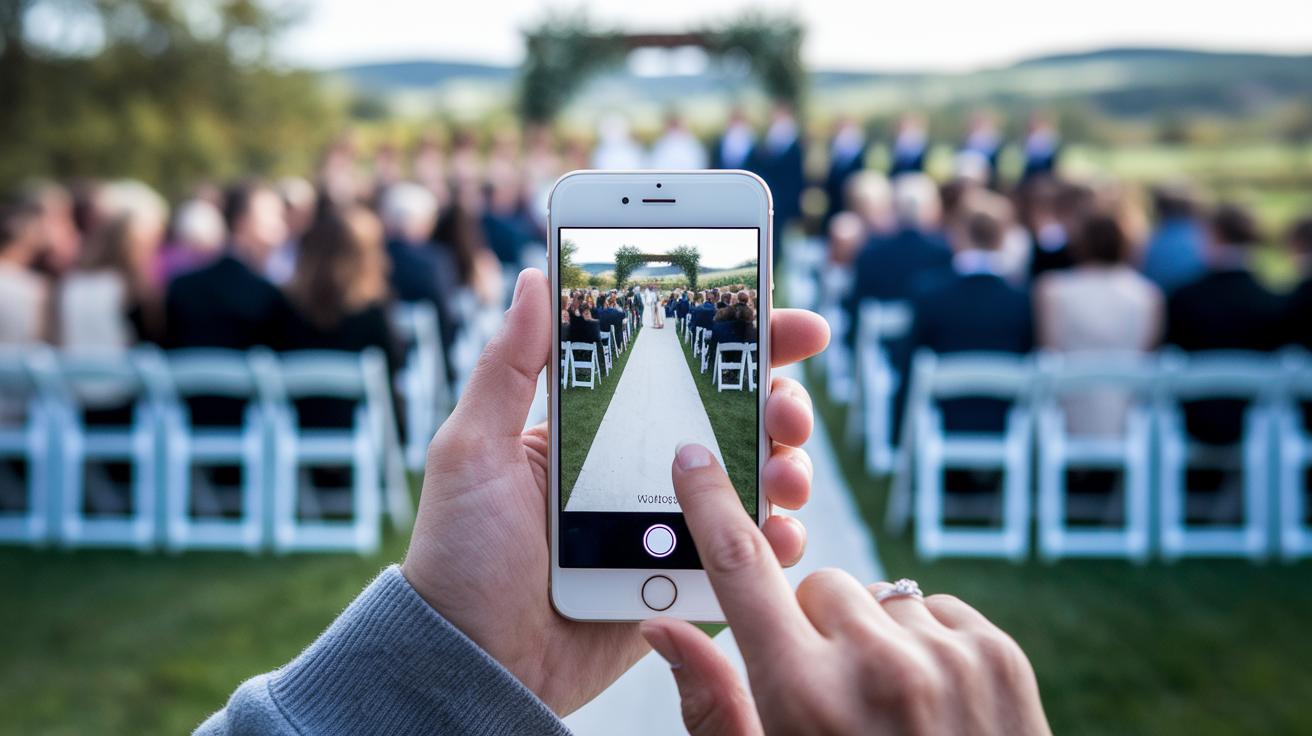
When you jump into mobile live streaming, choosing the right app is key to a smooth broadcast. Each platform has its own vibe and cool features. You might look for an app with a simple design that makes setting up your stream a breeze, or one that packs professional tools to shine a spotlight on your event.
Check out the table below for a quick side-by-side look at some popular apps and what they're best for:
| App Name | Best For |
|---|---|
| EventLive | Intimate events like weddings or family reunions |
| Larix Broadcaster | Pro streams with detailed control over settings |
| YouTube Live | Large public events reaching a wide audience |
| Twitch | Gaming and creative content with interactive chats |
| Facebook Live | Casual streams that boost social connections |
A clear, easy-to-use interface can make all the difference. For example, EventLive was a hit at a recent family reunion thanks to its simple, tap-through style. Larix Broadcaster stands out for those who want extra knobs and controls to keep every detail crisp. And if you’re after a huge crowd, YouTube Live gives you a mix of ease and reach that’s hard to beat. Gamers and creative souls often pick Twitch because it keeps the conversation lively, while Facebook Live feels like a cozy backstage chat with friends.
For more tips and ideas on choosing the perfect app, check out this live streaming software.
Essential Equipment for On-the-Go Mobile Live Broadcasts
Audio Enhancements
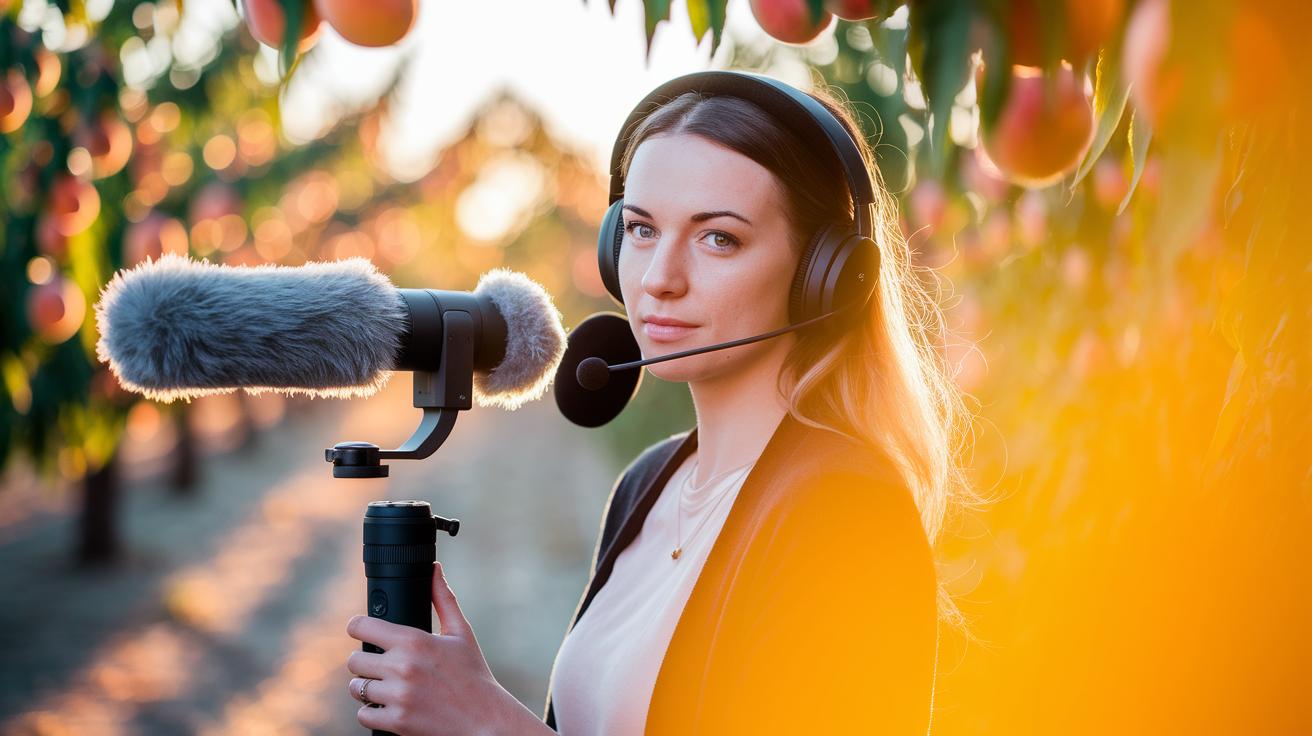
When you're out and about streaming live, a good mic makes all the difference. Using an external lapel mic or a directional mic helps cut through background noise so your voice sounds clear, no matter how busy things get. For example, placing a shotgun mic close to you works like a personal sound tech, capturing every word. And if you're outside, a windscreen can really help keep the wind from messing with your sound.
Stabilization Tools
Smooth video is key when you're on the move. Compact gimbals, mini tripods, or handheld rigs work wonders for keeping your footage steady. Imagine walking through a busy park while streaming, using these tools ensures your viewers feel like they're right there with you, rather than watching a shaky clip.
Lighting Solutions
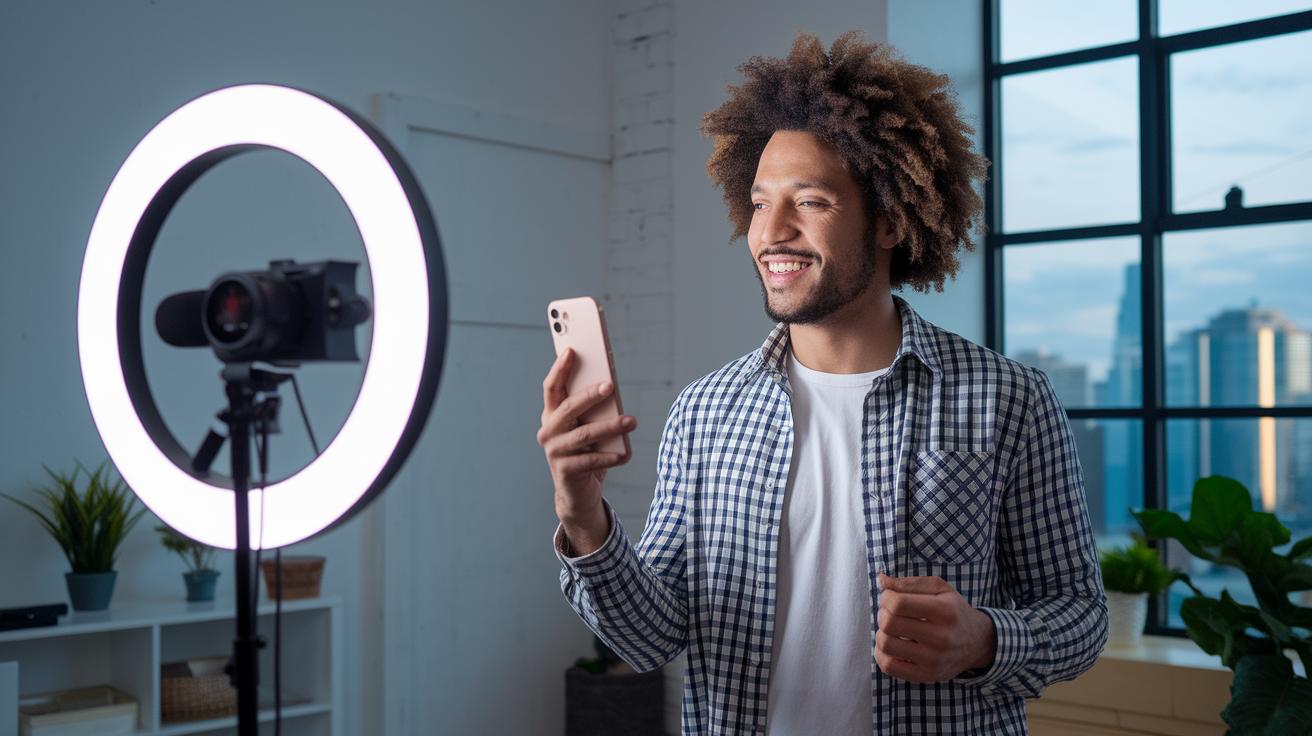
Good lighting is a game changer for any live stream. Portable ring lights and LED panels boost brightness and set the perfect vibe, especially in low-light situations. Whether you're streaming at dusk or indoors, these lights make sure the scene looks bright and balanced. A diffuser attachment can also soften harsh angles from artificial light, keeping everything looking natural.
Power & Battery Backups
Nothing interrupts a live broadcast like a dead battery. To keep your stream going strong, consider carrying a power bank with a capacity between 10,000 to 20,000 mAh. Some broadcasters even use hot-swap battery cases to easily change batteries on the fly. This way, you can focus on your show without worrying about your phone running out of juice.
Optimizing Network and Device for Low-Latency Mobile Streaming

First, check your connection speed. You need an upload rate of at least 3 Mbps to stream in HD without hiccups. Run a quick speed test before you start so you can be sure your network is up to the task. You might even say, "I checked my upload rate, and it's over 3 Mbps, I'm all set!"
Then, clear away any distractions running in the background. Close apps you’re not using and ask others on the same network to cut back on heavy usage. This makes sure your streaming app gets most of the bandwidth, keeping delays to a minimum. It’s like giving your phone some one-on-one time.
Also, try to keep your device where the signal is strongest. Stay close to your Wi-Fi router or find a spot with a strong cellular signal. Testing different areas for a steady connection can really help avoid signal drops and keep your stream smooth.
One more tip: switch your phone to airplane mode while leaving Wi-Fi turned on. This simple change stops extra notifications and background signals from causing interruptions, so your live broadcast stays as smooth and low-latency as possible.
Enhancing Video and Audio Quality on Mobile Broadcasts
Start by tweaking your video encoder settings to give your stream a sharp, professional look. Set your resolution at 720p with a bitrate between 1500 and 2500 kbps. This balance keeps your images clear and smooth, even when the network isn’t playing nice.
Then, turn on adaptive bitrate streaming in your app. This neat feature automatically adjusts the quality based on your current bandwidth, pretty much like a smooth transition in a live show. It helps your stream flow effortlessly no matter what.
For better audio, choose the AAC audio codec at 128 kbps. This setting ensures that all your sounds, from dialogue to background music, are crisp and clear. And if something sounds a bit off, just double-check your codec settings to keep everything sounding just right.
Next, try out any in-app color correction tools or filter presets. A quick tweak to these settings can make your video look awesome, especially under tricky lighting. Imagine it like adjusting the colors on your favorite TV, suddenly, everything pops with natural hues.
Lastly, keep an eye on your bitrate settings with regular reviews. This way, you can catch any issues early and make adjustments during your stream, ensuring your broadcast stays vibrant and engaging throughout.
Managing Power and Device Performance During Long Broadcasts

When you're streaming for hours, keeping your device charged and cool is key. Start by grabbing a power bank with around 10,000 to 20,000 mAh. This extra boost lets you stream for over four hours without that nagging worry of your battery dying mid-show.
Also, try turning on battery saver mode. But keep an eye out, make sure it doesn’t slow down your CPU or mess with your camera quality because you still need that crisp video and smooth streaming. It’s like giving your device a quick break without losing the spark your broadcast needs.
Before you hit "go live," run a five-minute practice session. This mini-test lets you check your CPU's temperature and catch any frame drops early. If things seem to heat up too fast, think about shutting down a few background apps or scheduling a short break during your stream. A quick check like this can save you from unexpected hiccups.
Stick with these tips, and your device will keep up with you during those long streaming sessions. That way, you can focus on the fun, engaging moments with your audience and deliver a broadcast that feels effortless.
Troubleshooting Common Issues in Mobile Live Streaming

When your live stream goes off course, a few quick tweaks can get you back in the groove. If you face login errors, try re-entering the emailed code. Picture this: you see an "Access Denied" message, then quickly type in the code you just received, and suddenly, your stream is running smoothly again.
For connectivity hiccups, switch between Wi-Fi and cellular data. It’s like flipping a switch when your network seems weak, jumping from home Wi-Fi to your cellular can make your video just steady enough to captivate your audience.
If you notice streaming delays or stalls, lowering your resolution or bitrate can help ease the lag. Imagine it as adjusting the brightness on your phone to save battery, it reduces the load and helps your stream keep up during packed moments.
When unexpected crashes occur, closing the app, restarting it, and clearing the cache often clears up any glitches. One streamer described it like this: after a sudden freeze, a quick restart and clearing of the cache brought the broadcast back to life.
These simple fixes are your go-to moves when you need to quickly bring your live broadcast back on track.
Interactive Engagement and Audience Features for Mobile Streams

To capture your audience's energy, it’s crucial to keep them part of the live action. One cool trick is inviting people from wherever they are to join in. Most streaming apps let you grab a special guest link, just tap the three dots and look for a prompt like “Copy your guest link now.” Then, share that link right away with anyone eager to jump in.
If something goes off with the stream, like a guest having audio issues, using a private chat helps you fix things without interrupting the show. Picture this: a guest's sound starts acting up, so you slide into a quick, hidden chat to solve it. This smooth move keeps the live feed buzzing while making everyone feel involved.
Adding interactive on-screen elements can take the experience to another level. Try turning on polls or Q&A overlays in your app. Imagine asking your viewers a fun multiple-choice question like "Which gadget should we review next?" It’s a great way to spark participation and keep the energy high throughout your broadcast.
You can also pump up the vibe by blending social media comments right into your stream. Whether you're live on Facebook, YouTube, or Twitch, showing real-time feedback makes the event feel even more dynamic. When your viewers see their own comments pop up alongside the video, they truly become part of the live magic.
- Grab your unique guest link from the menu and pass it on.
- Chat privately with guests to resolve hiccups without interrupting the show.
- Activate on-screen polls or Q&A sessions to keep the energy high.
- Mix in live social media comments so your audience can shine.
Advanced Mobile Live Streaming Workflows and Customization

Ready to give your mobile live stream a studio-level boost? With a few clever workflows, you can transform your broadcast into a vibrant, polished show. The Omnistream app makes it easy by offering professional-grade transmission and handy real-time subtitles. Imagine watching your favorite live event with clear, on-the-fly captions that keep everyone on the same page.
Next, try mixing in a multi-angle setup. You can use a second device or a capture card along with your smartphone to switch views during the stream. It’s like having your own director who captures every exciting angle, making your production feel active and engaging.
You can also add custom graphics and animated overlays to really make your broadcast pop. A moving logo or animated title can give your stream a sleek look while keeping your brand front and center. Picture animated text that announces new segments or special offers, keeping everyone informed and entertained as the show rolls on.
To keep things smooth, set up in-app macros or hook up connected controllers so you can switch titles and scenes without a hitch. This approach is much like having a live event director making seamless transitions, ensuring your viewers enjoy a continuous, immersive experience.
Finally, focus on clear stream branding with personalized overlay designs and unique visuals. Experiment with these advanced techniques and watch as your mobile live stream turns into a captivating, professionally styled production that really connects with your audience.
Final Words
In the action, our guide showed you how to select your streaming platform, set up your app, and check your network for a smooth broadcast. We broke down the steps for planning your content and improving audio, video, and power performance. Tactics for troubleshooting and boosting viewer participation round out the mobile live streaming guide. Enjoy these insights to create exciting, interactive streams that keep your audience coming back for more.
FAQ
Q: What is mobile live streaming?
A: Mobile live streaming is broadcasting video live using your smartphone. It involves using apps to transmit your event in real time, making it easy to share experiences instantly.
Q: How do I use mobile live streaming?
A: Using mobile live streaming means selecting a platform, installing its app, granting camera and microphone access, and following simple in-app guidance to start your live broadcast.
Q: How do I live stream on YouTube from my phone?
A: Live streaming on YouTube from your phone involves opening the YouTube app, tapping the live icon, setting up your stream details, and checking that your device and connection meet the necessary requirements.
Q: What features does a free mobile live streaming guide offer?
A: A free mobile live streaming guide offers step-by-step instructions on picking a platform, installing and setting up the app, handling permissions, and planning your content effectively.
Q: Which mobile live streaming guide is best for beginners?
A: The best mobile live streaming guide for beginners provides clear, easy-to-follow steps on setup and optimization, helping you feel confident when starting your first broadcast.
Q: How can I live stream for free?
A: To live stream for free, use platforms like YouTube Live or Facebook Live that don’t require fees. Simply download the app, follow the guide, and use your existing mobile data or Wi-Fi connection.
Q: What are some popular live streaming websites?
A: Popular live streaming websites include YouTube Live, Facebook Live, Twitch, and EventLive, each offering a user-friendly interface to broadcast and engage with your audience.
Q: What are the best mobile live streaming apps?
A: The best mobile live streaming apps include YouTube Live for broad reach, Twitch for gaming or creative streams, and Facebook Live for social engagement, each designed for on-the-go broadcasting.
Q: How can live streaming be used for broadcasting matches?
A: Live streaming for match broadcasts lets you share sports or live event action directly from your device. It ensures that fans experience the excitement as it happens, with minimal delay.
Q: What mobile service is best for live streaming?
A: The best mobile service for live streaming offers a strong, stable connection with at least a 3 Mbps upload speed, ensuring smooth video transmission during your broadcast.
Q: Which mobile device is best for live streaming?
A: A mobile device ideal for live streaming has a high-quality camera, fast processing, and reliable network connectivity, making it perfect for capturing and broadcasting live moments.